How To Share Zoom Link For Virtual Tour With Customers
Get the virutal tour booking data from Metabase and update raw data in Virtual Tour予約管理 Sheet
- Visit Metabase to get the virtual tour booking data
- Click
Download full resultsand download csv file - Visit Virtual Tour予約管理 and import the raw data from A to I columns
Generate Zoom link for the virtual tour
- Visit Google Calendar and use Chrome's add-on (Zoom Scheduler) to generate the zoom link (Check Zoom shceduler's account is logged in with guides@libra.co.jp)
Match the generated Zoom link with the tour
Copy the generated Zoon link in Google Calendar (* Make sure the Zoom link includes
?pwd=●●●. Without this, guides and customers need to put password to enter the meeting, which we do not share in the email)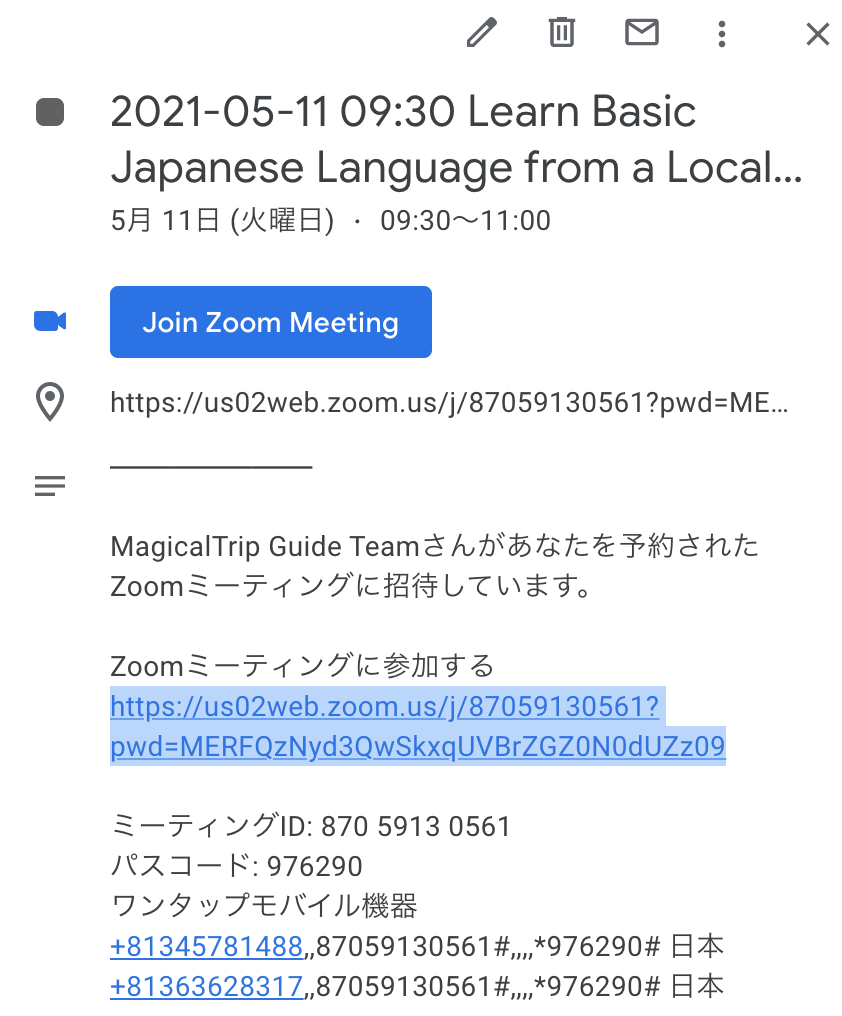
Paste Zoom Link to
Virtual Tour予約管理's Zoom Link管理 Sheet, column Gand select Zoom account in column H
Send Zoom link to customers
- Visit
Virtual Tour予約管理's Customer-SendEmails Sheet - Click
CustomerにZoomリンクを送信するMake sure there is NO要対応 - Click
予約情報を保存する
Email sending setting is done with google script editor. You can change the setting from here
Share Zoom link and Host key with guides
- Visit
Virtual Tour予約管理's Zoom Link管理 Sheetand copy column I (Make sure Zoom link and Host account in column G, H is filled) - Visit Tour Group Page in BackOffice (https://backoffice.magical-trip.com/admin/reactview/tours/TOURGROUPID) and paste to
Info for guides:and click update